Running programs at your club
Updated 21 September 2026
A program is something your club sells again and again — Learn to Shoot, a junior club, a league night. Each dated term of it is a run, and each meeting of a run is a session. Archers book a whole run.
You need the Manage programs permission. A club admin grants it on the organization's Staff page.
Create a program
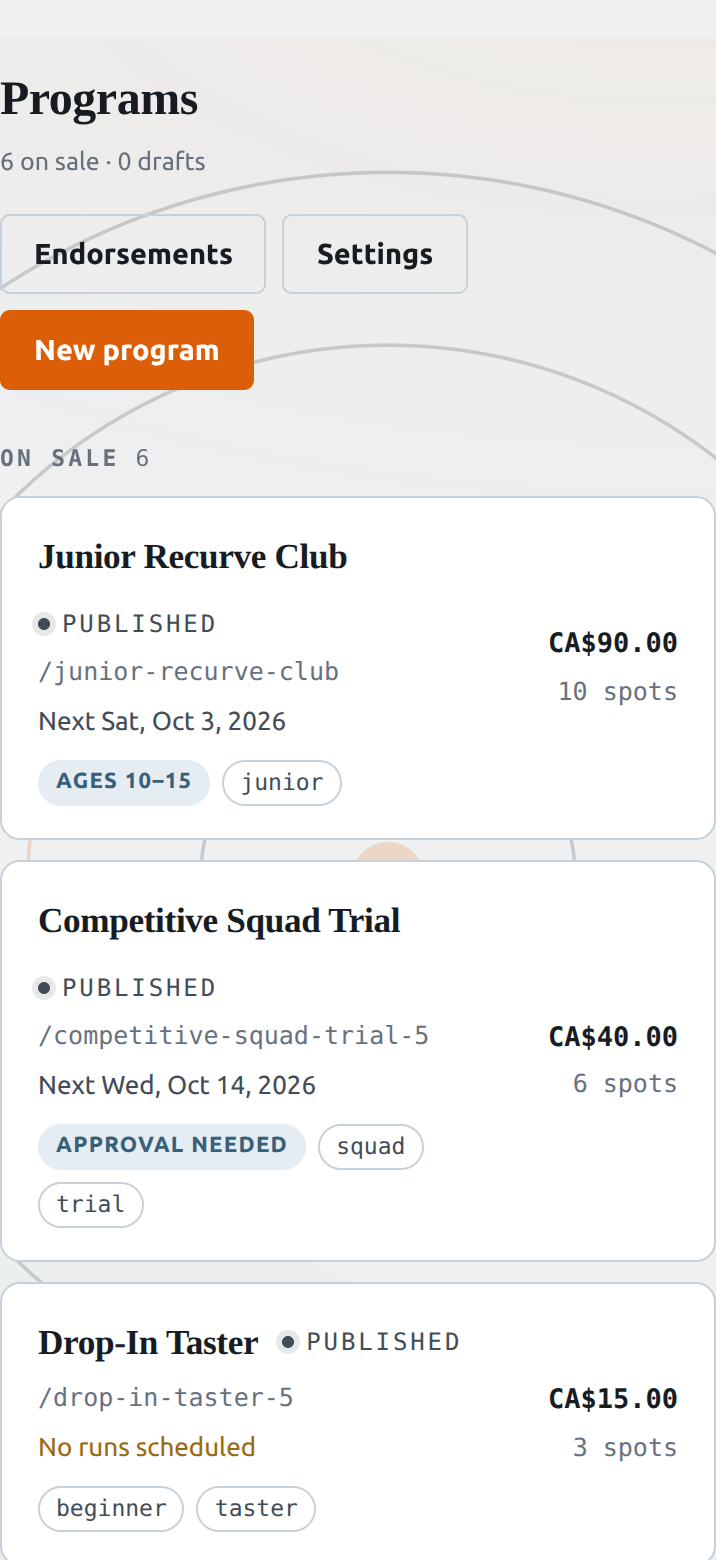
- Open your club, choose Manage, then the Programs tab.
- Press New program.
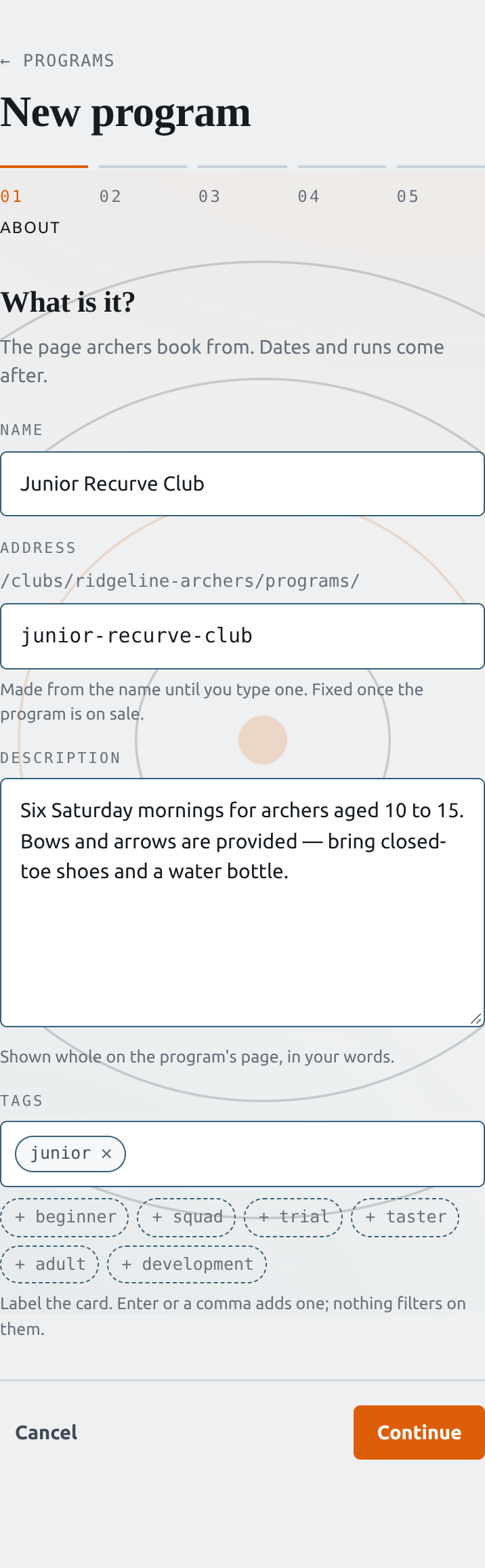
- About — the name, the page address, a description and tags. The description is shown whole on the program's page.
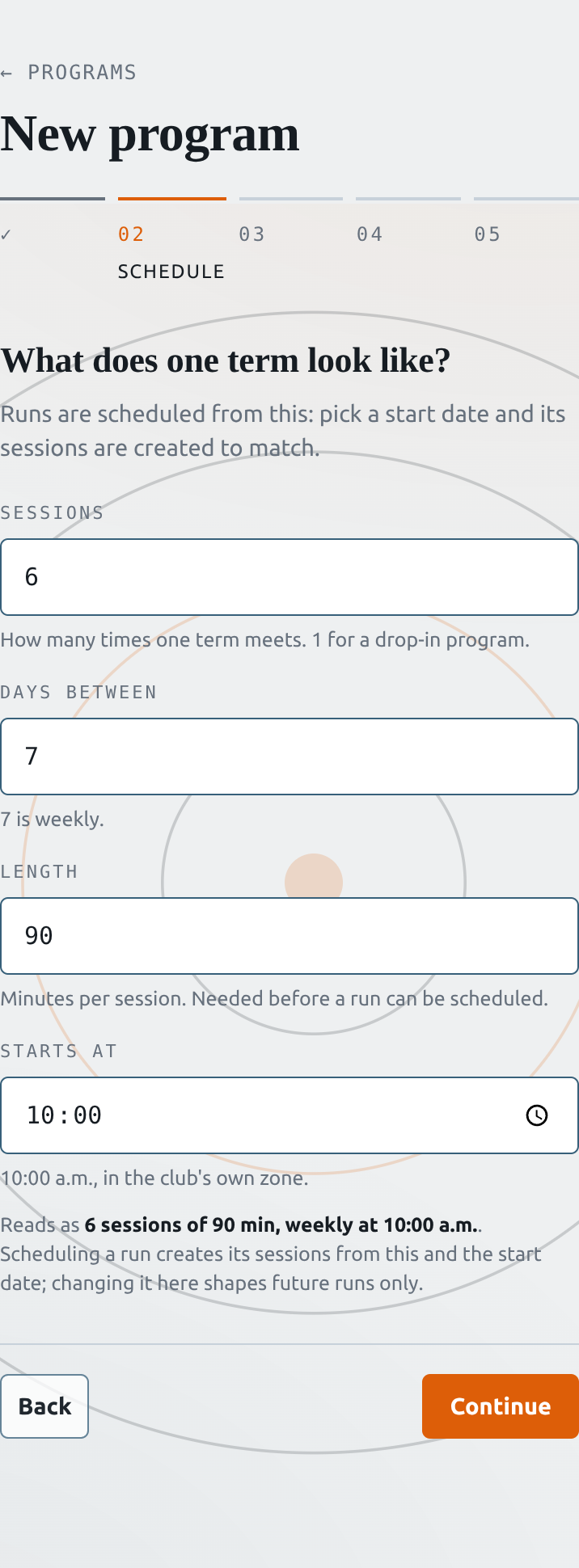
- Schedule — how many sessions one term has, the days between them, the length and the start time.
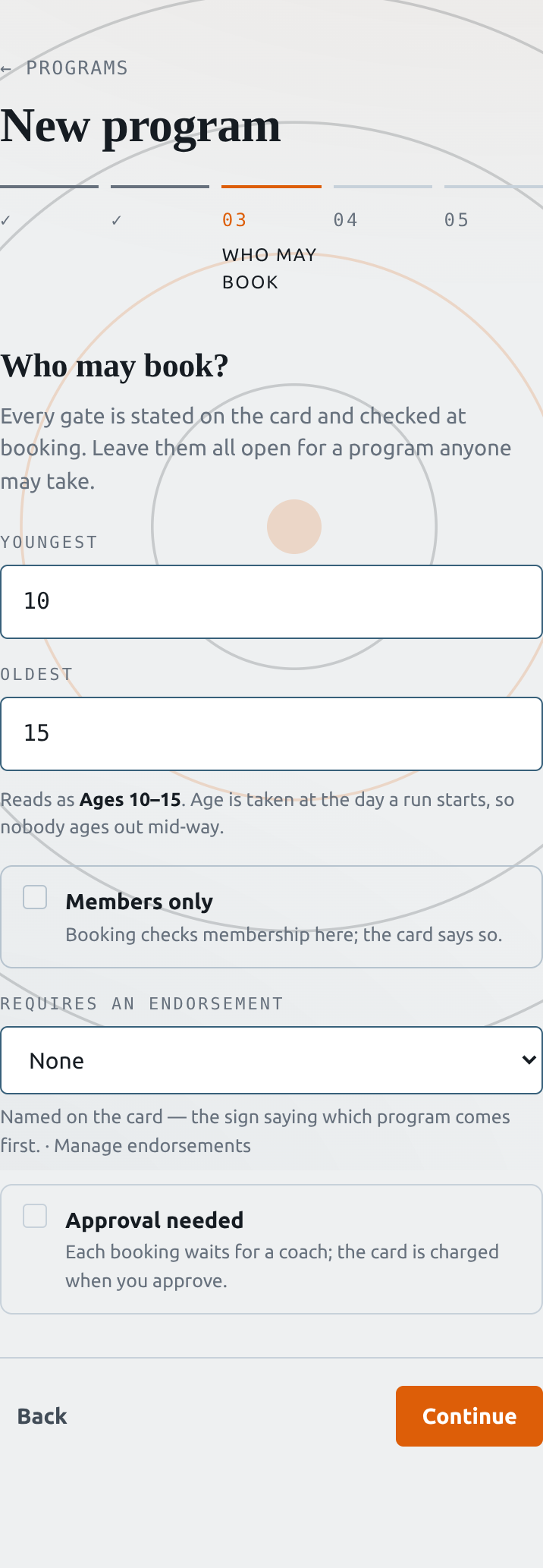
- Who may book — an age range, Members only, a required endorsement, or Approval needed. Leave them all open for anyone.
- Cost & room — the price and how many archers fit in one run.
- Review the card, then press Publish.
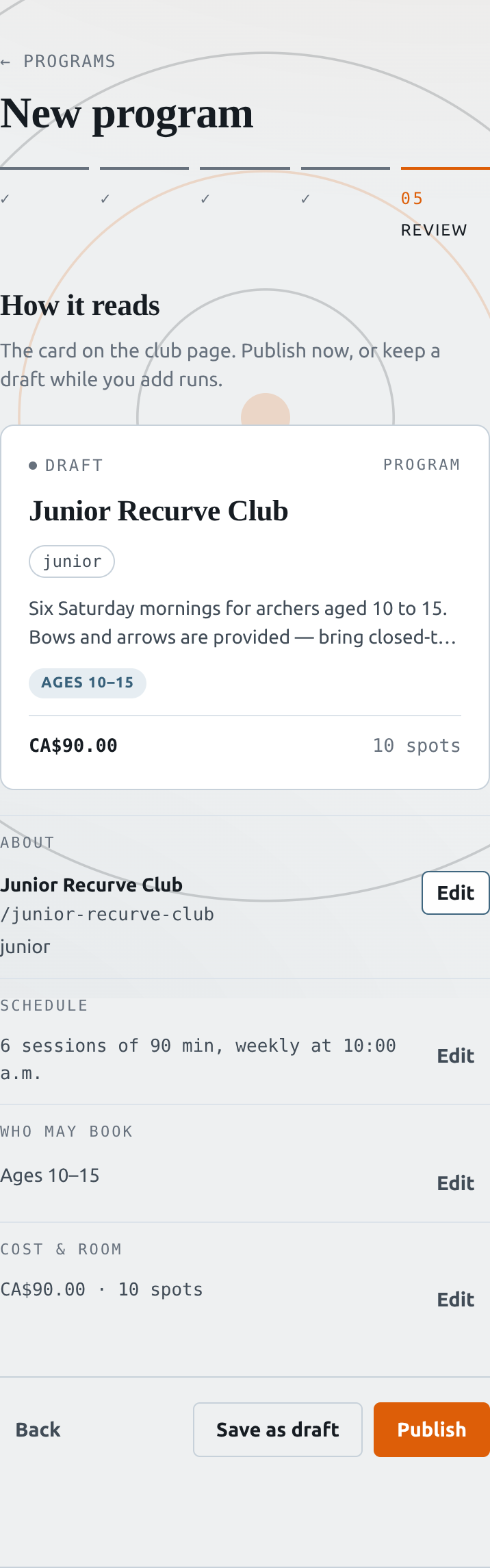
Publish needs a description, a price and a capacity. A price of 0 makes the program free.
Schedule a run and put it on sale
Publishing opens the program's editor. Runs can only be scheduled on a published program.
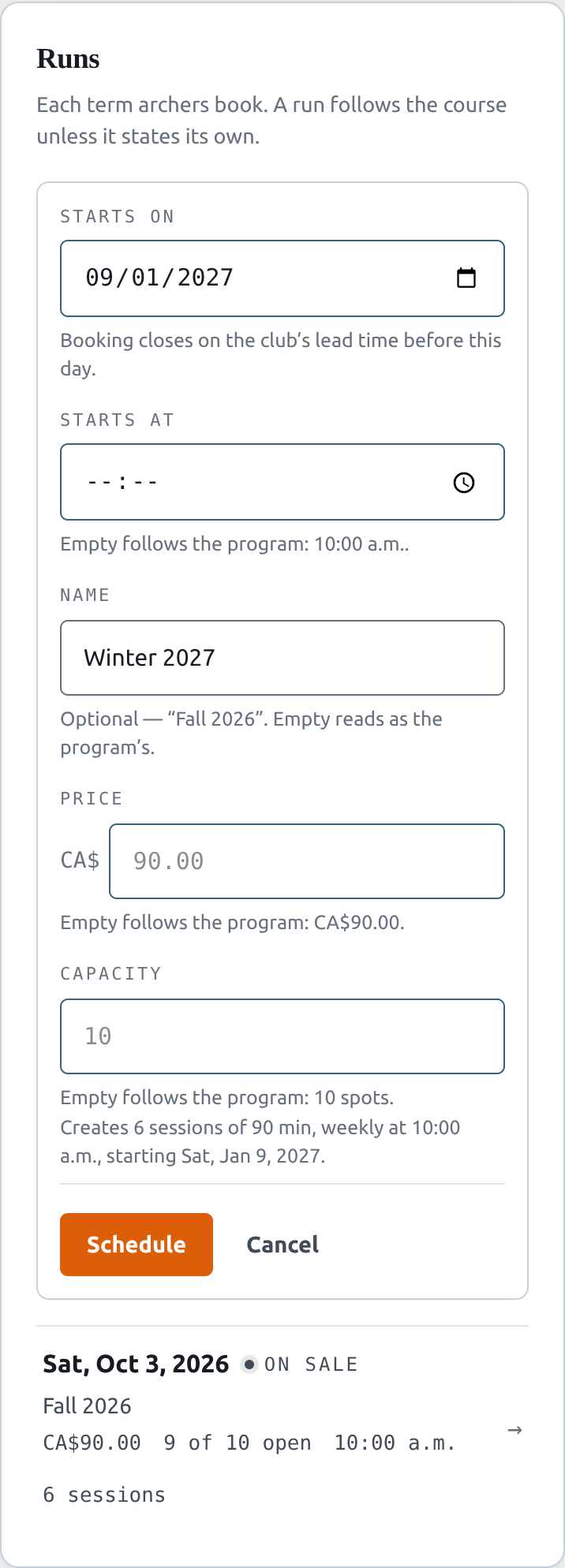
- Choose the Runs tab and press Schedule a run.
- Pick Starts on. Add a name like “Fall 2026” if you want one. Leave the time, price and capacity empty to use the program's.
- Press Schedule. Its sessions are created from the program's schedule.
- The new run is a Draft. Open it and press Put on sale to open booking.
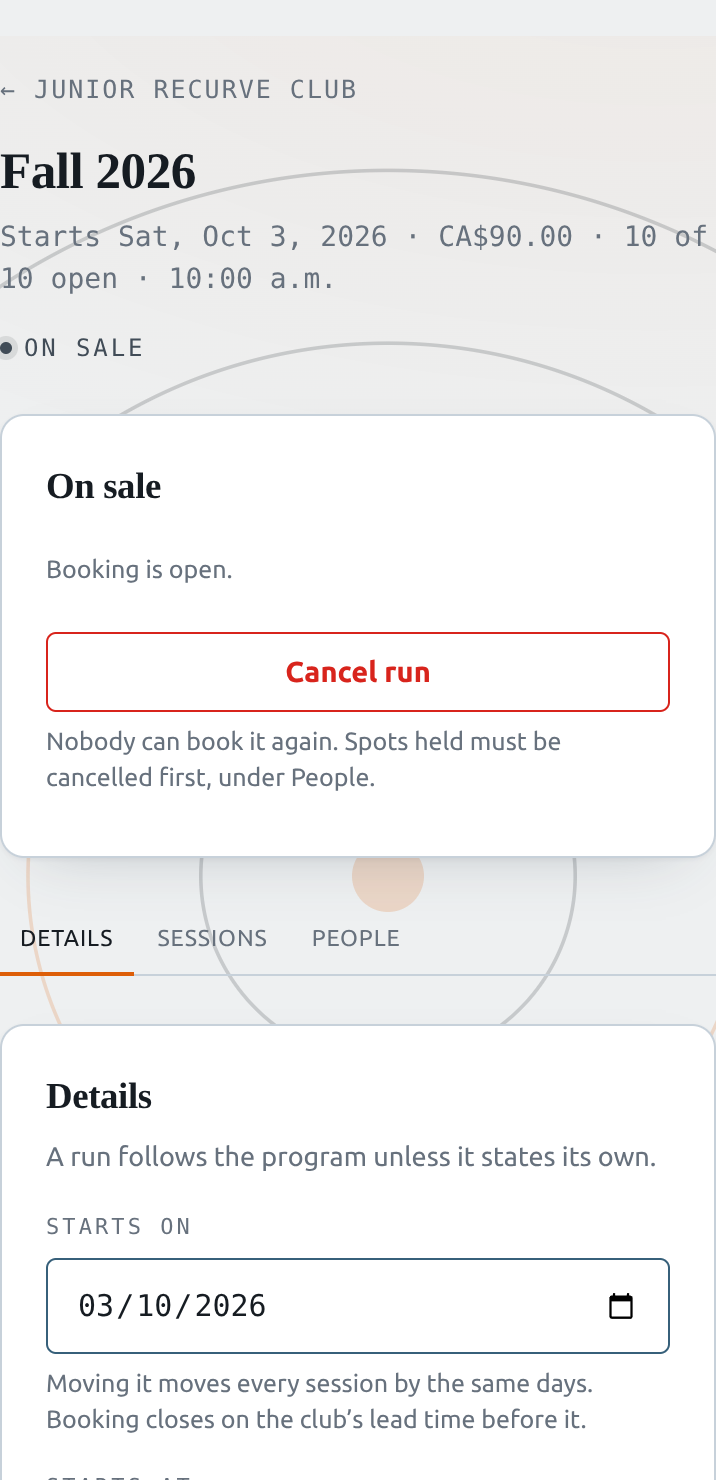
Booking closes at the club's registration cutoff before the run starts. Next season is a new run, not a change to this one.
Manage a run
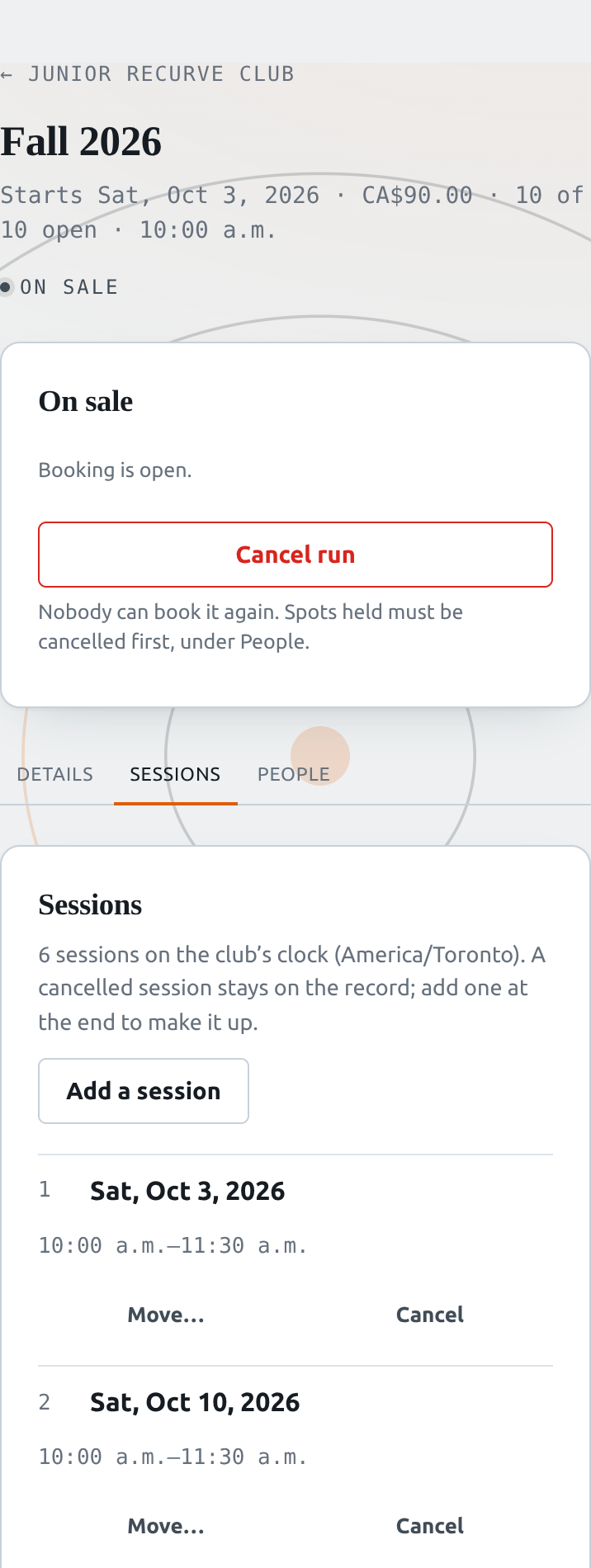
A run's page has three tabs.
- Details — change the start date, time, name, price or capacity. Moving the start date moves every session by the same number of days.
- Sessions — Move… a night to another date, or Cancel it and Add a session at the end to make it up. No money moves either way.
- People — who holds a spot and what they paid or owe, who is on the waitlist, and who is waiting for your approval.
Waitlist
When a run is full, archers can join its waitlist. Nobody is charged while they wait. Press Give a spot to move someone in once a spot is free. On a paid run they get a deadline to pay, or the spot goes to the next person.
Approvals
On a program with Approval needed, requests appear under Awaiting approval. The archer's card is held, not charged, until you press Approve. If you press Decline, add a reason. The archer sees it.
Cancelling
To take back one archer's spot, press Cancel… on their row. The confirm shows the refund before you commit. When the club cancels, the archer gets back everything they paid.
Cancel run works only once nobody holds a spot. Cancel each booking under People first. The waitlist stays as it is.
Take a program off sale
- Unlist removes it from the club page. Its address still sells, so you can share the link directly.
- Archive takes it off sale. Runs stop selling, and spots already booked stay booked. Restore brings it back unlisted.
Club-wide settings
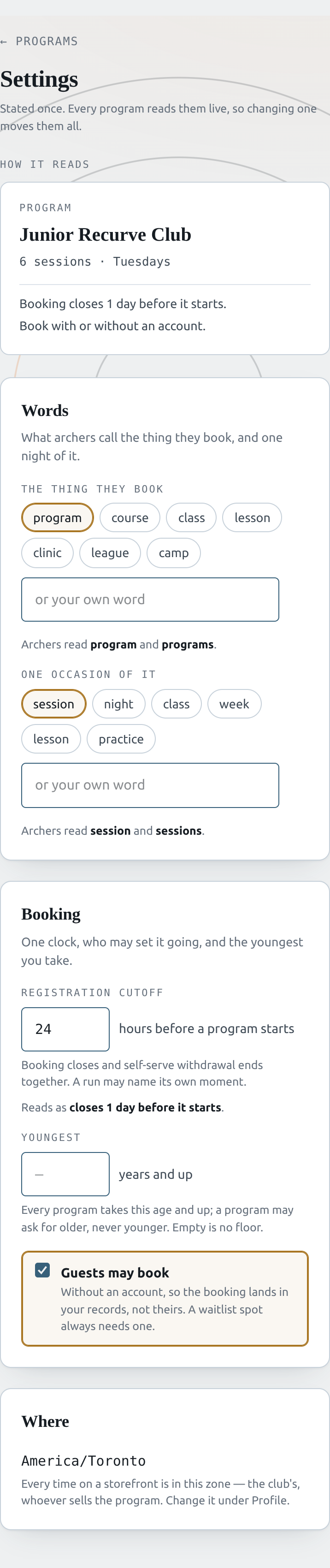
Programs → Settings applies to every program the club runs, so changing a setting changes it on every program at once.
- Words — what archers call a program and a session: course, class, night, or your own word.
- Registration cutoff — how many hours before a run starts booking closes. After it, archers can still withdraw but get no refund.
- Youngest — the minimum age for every program. A program can ask for older, never younger.
- Guests may book — let people book without an account. Joining a waitlist always needs one.
Endorsements and member pricing
An endorsement records something an archer has been signed off on, like Range Safety. Create them under Programs → Endorsements, grant one to an archer from its page, then require it on a program under Who may book.
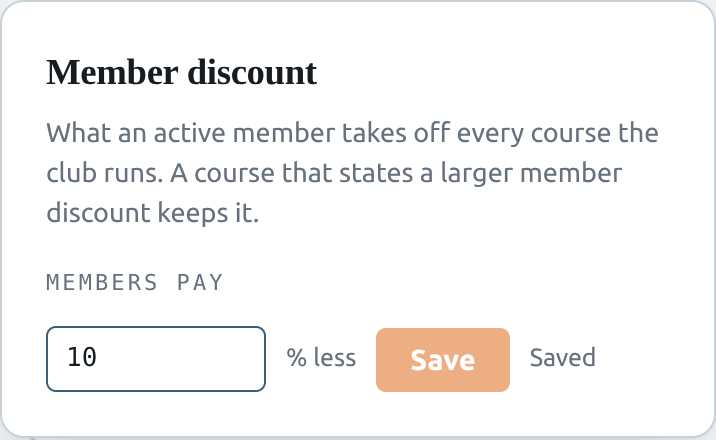
Member pricing is set on the Members tab, which needs the Manage members permission. Enter a percentage under Member discount and every active member gets it on every program.